

Scenarios
A trade is rarely one decision. You enter, then plan what you would do if the market goes against you or if you have made most of the profit: hedge at a price, take half off at a P&L, close at 2 DTE. A scenario is one of those planned steps: a set of modeled legs you can look at on the risk graph without trading them. A condition is the “when” you attach to it. Tented watches the condition in the background and tells you when it holds. It never places an order; you review the step and commit it yourself.
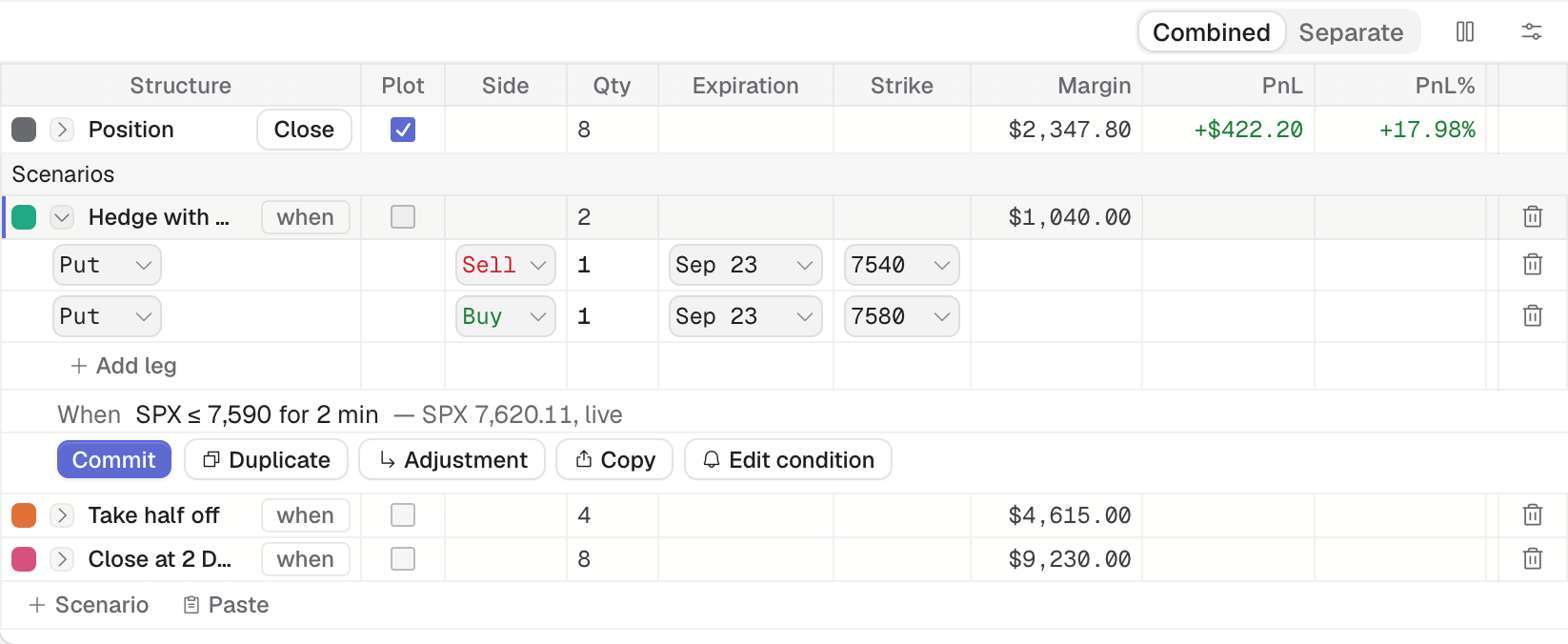
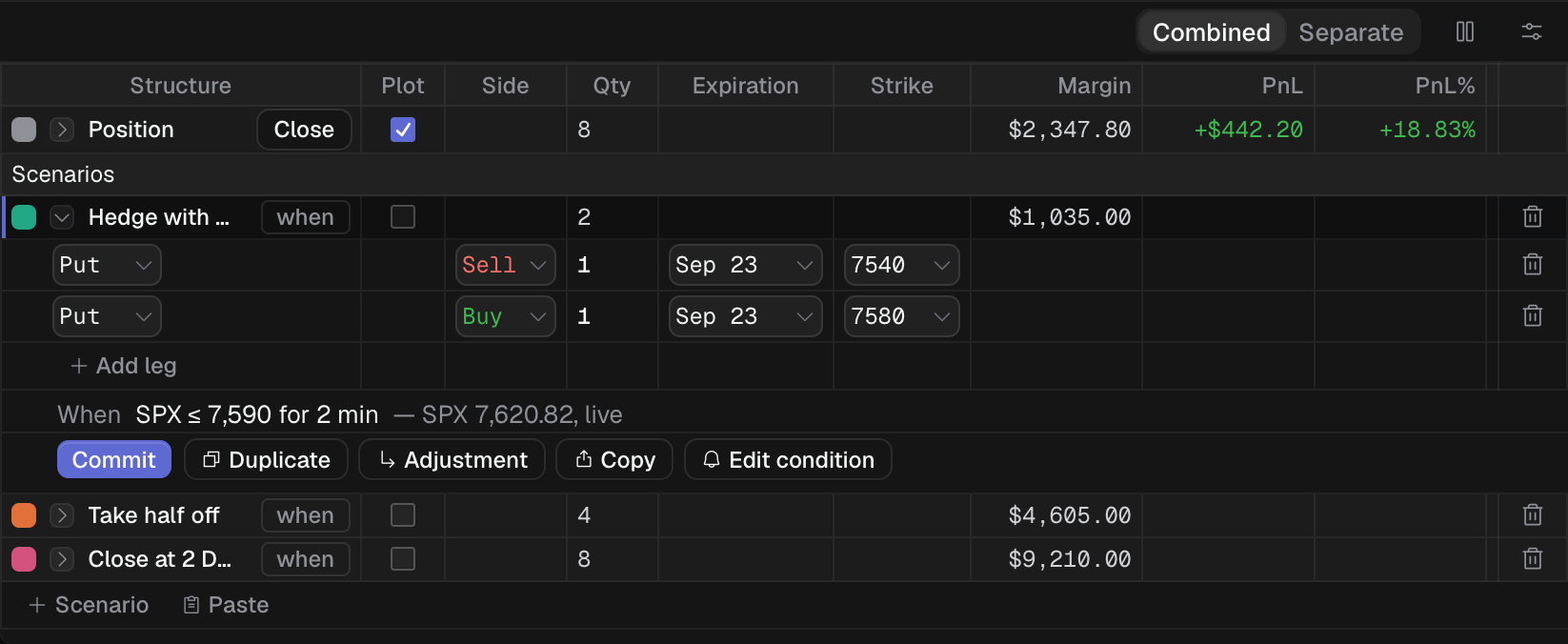
The put BWB's builder: three planned steps, the first expanded to show its condition.
- 1 Scenario row with Plot checkbox
- 2 When SPX ≤ 7,590 for 2 min
- 3 Add a step after this one
- 4 Commit this scenario
How traders use it
Section titled “How traders use it”- Pre-plan a hedge. On the Sep 23 put BWB, the scenario “Hedge with a 7580/7540 put spread” waits for SPX ≤ 7,590. When it is met you open the trade, look at the curve with the hedge on, and commit.
- Pre-plan an exit. “Take half off” waits for P&L ≥ $2,000 and “Close at 2 DTE” waits for the date, so neither needs you at the screen.
- Compare two repairs. Model a roll and a hedge as two scenarios, tick both in Plot and read which one leaves the better worst case.
- Plan a step at a price. Use Adjustment to model what you would do after a move to 7,590, priced as if the move had happened.
- Take it to thinkorswim. Copy a scenario as a thinkorswim order and paste it there.
Articles
Section titled “Articles”- Create a scenario: add one, model its legs.
- Plot scenarios on the risk graph: the Plot checkbox and Combined or Separate.
- Duplicate, copy and adjust a scenario.
- Add a condition: the clause types and Holds for.
- See which conditions are watched.
- When a condition is met.
- Commit a scenario.
If a condition is not watched or did not fire, see Condition isn’t watched or can’t be saved and Condition didn’t fire.