

Trade builder
The trade builder shows a trade as a list of legs with cost, margin, P&L and Greeks, so you can change the legs and compare what-if versions against what you hold. The top is the position you already have, filled and read-only. Below it are your scenarios: sets of modeled legs for an entry, an adjustment or a close. Each scenario row shows its own figures, and the risk graph draws the ones you tick in Plot.
In thinkorswim terms, a scenario is an order you have built but not sent. Nothing leaves Tented until you press Commit.
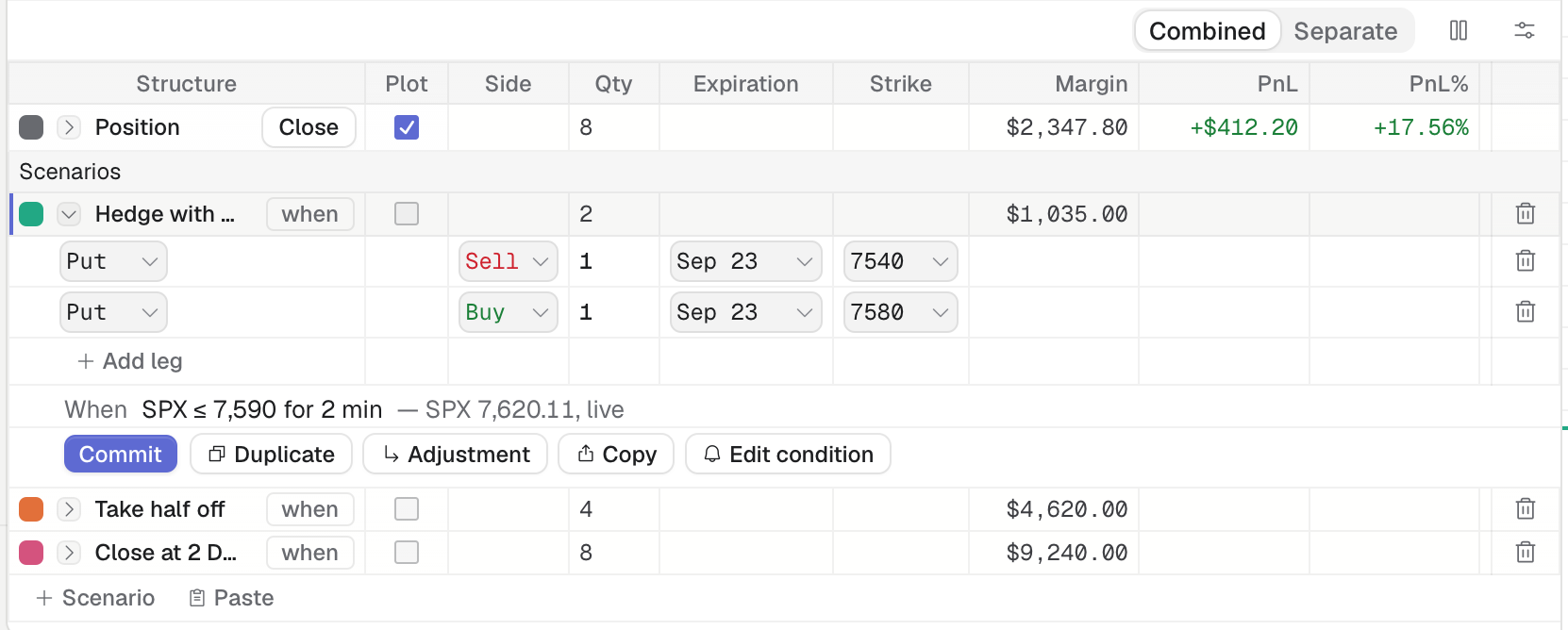
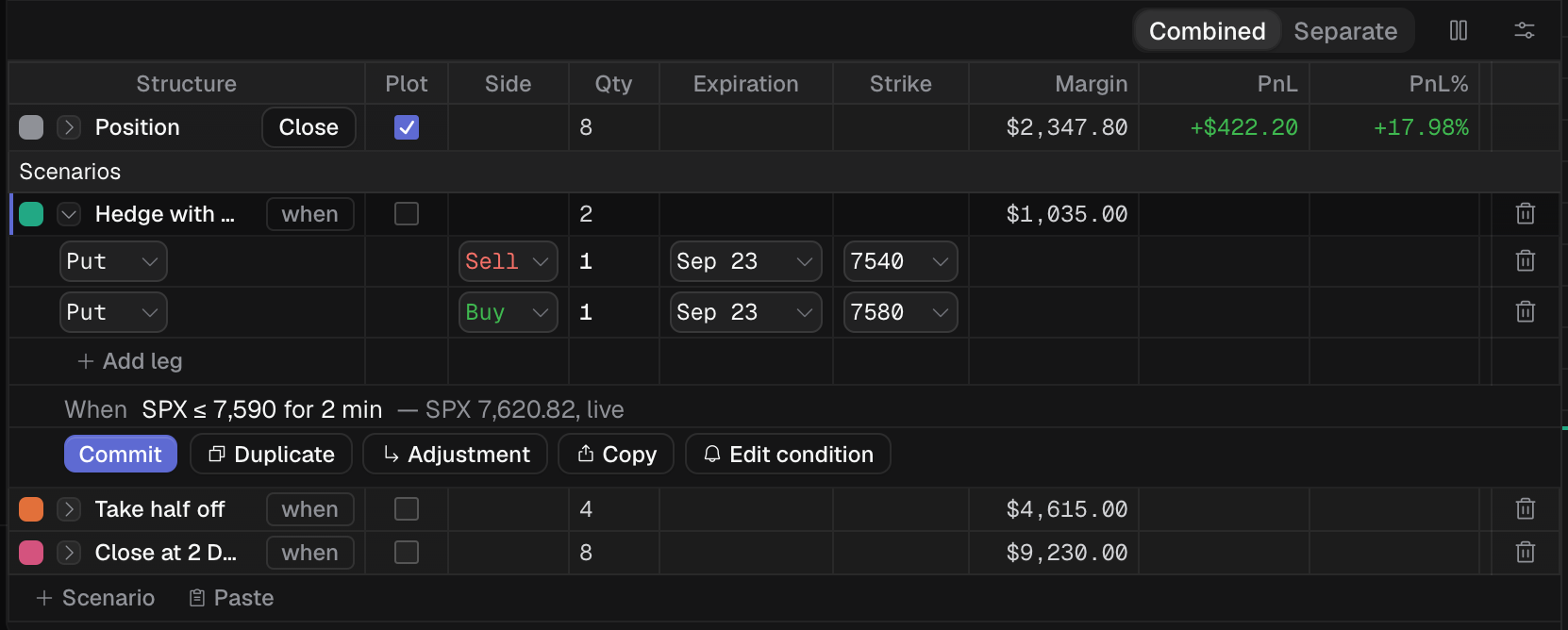
The Sep 23 put BWB in the trade builder. Scenarios sit under the position.
- 1 Combined or Separate
- 2 Position row and Close
- 3 A scenario row
- 4 Commit this scenario
- 5 New scenario or paste an order
How traders use it
Section titled “How traders use it”- Model the adjustment before you make it. With the BWB open, click the ask of a put in the chain, or press + Scenario then Add leg. The scenario row shows the margin and Greeks of the adjustment alone. In Combined mode, hover the row to read it together with the position.
- Compare two exits. Build “Close half” and “Roll down” as two scenarios, tick both in Plot, and read both curves against the position.
- Plan a sequence. Press Adjustment to add a step that builds on a scenario, then give each step a condition such as “when SPX ≤ 7,590”.
- Size before you send. Type a quantity in a leg row and watch Margin, PnL and Delta change on that row.
- Move an order between platforms. Copy a scenario as a thinkorswim order line, or Paste one a thinkorswim user posted.
Articles
Section titled “Articles”- The Position row
- Add and edit legs: scenarios, quantities, Duplicate, Adjustment and Commit.
- Combined and Separate
- Choose builder columns
- Ignore Today’s Trades
- Copy and paste a thinkorswim order
- Scenarios and conditions
Scenario colors cannot be changed, and a scenario’s legs cannot be plotted one by one.