

Set a target and stop
At entry: Commit dialog → Plan & notes. Collapsed, it shows chips for Strategy, Target, Stop and the number of alerts, plus the Thesis (“Why this trade?”, up to 200 characters). Edit plan opens the full editor.
Later: open the trade → drawer → Record → Plan card → edit. Change the rows, then Save (or Cancel). A closed trade’s plan cannot be edited.
The plan rows
Section titled “The plan rows”- Strategy: appears once you have written at least one. Picking one fills an empty target and stop from it; it does not overwrite values you already set.
- Target and Stop: choose a unit, then type or step a number. Units are % of credit, % of max loss, % of margin, % of account and $ P&L, or None. A unit the trade cannot supply (no credit on a debit trade) is greyed with “not on this trade”. The “= $400 · …” reading beside each row restates the amount in dollars and the other bases. Changing the unit keeps your number.
- Alerts: chips with a watch status; + add opens the builder (Alerts).
- Note: your one-line thesis.
Where the plan shows
Section titled “Where the plan shows”- Risk graph: a horizontal line labeled “Target $400” and one labeled “Stop −$1,500” at those P&L values (Risk graph).
- Trade card and header: when the trade’s P&L reaches the target, the status line reads Profit target reached (blue); at the stop, Loss limit reached (red). Tented compares P&L with the target or stop as a share of the trade’s maximum profit or loss, on fresh quotes only. Close at then takes the primary style. The card’s progress bar fills toward the target or stop, with a mark where it sits.
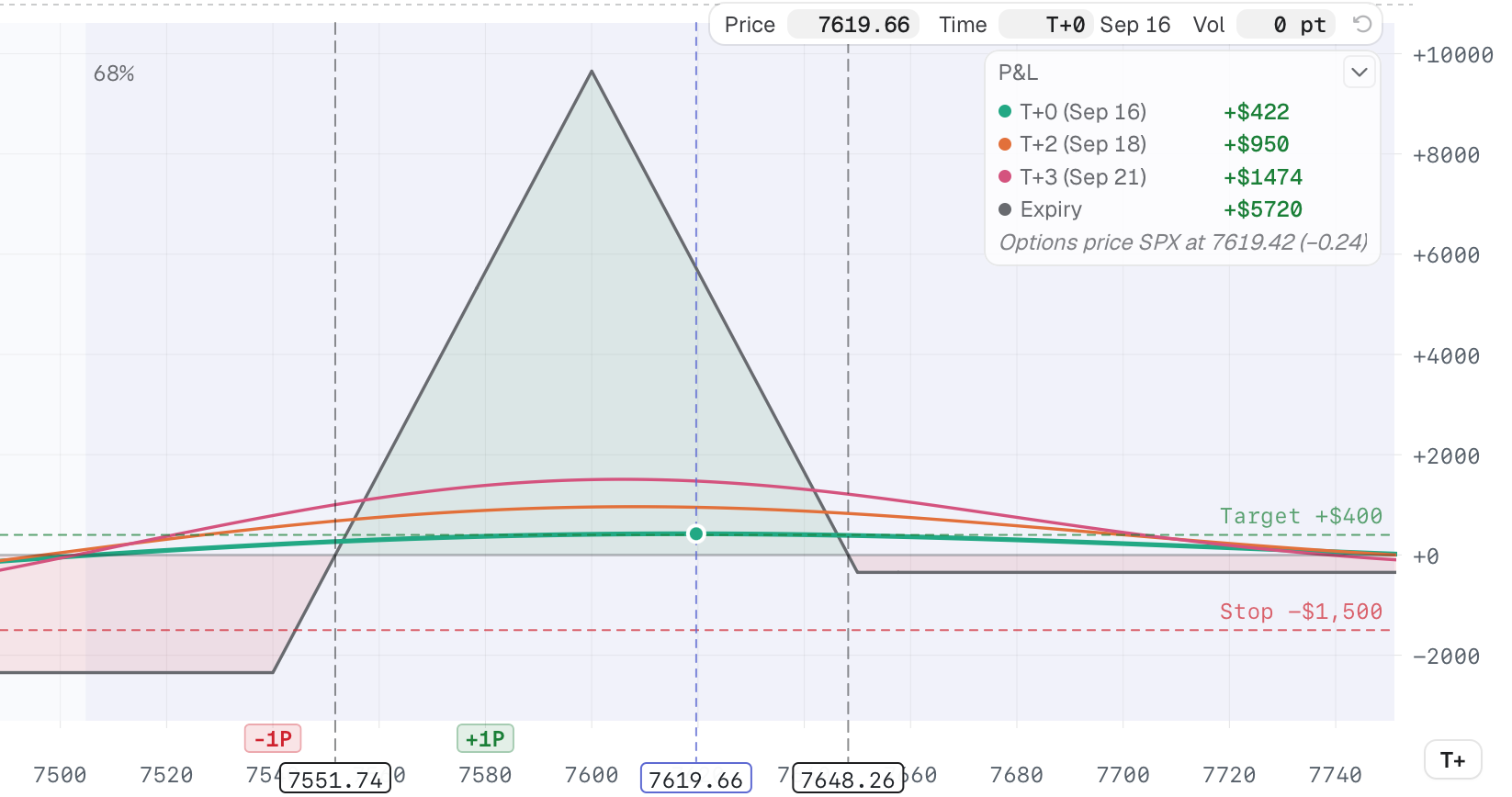
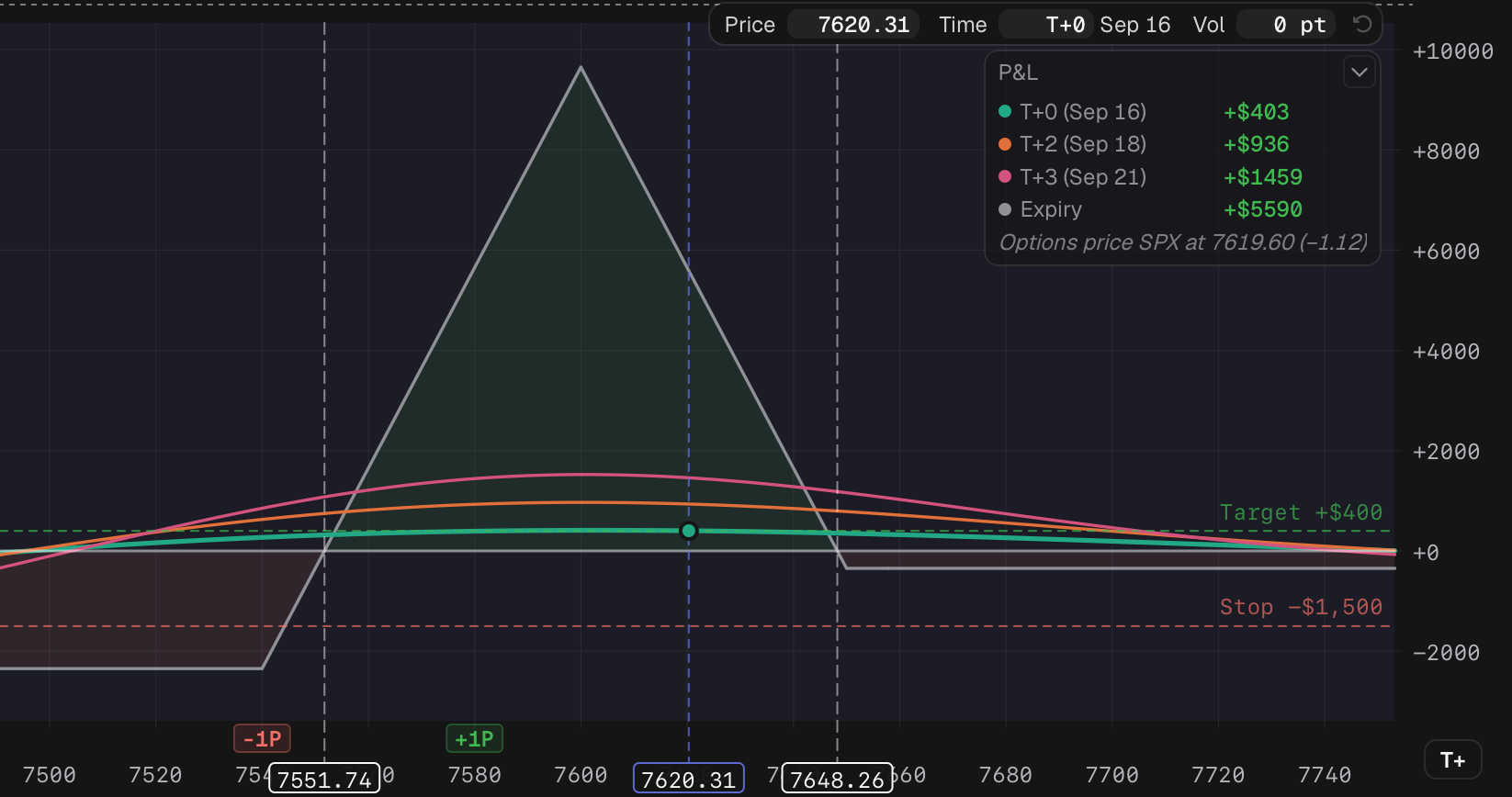
The risk graph draws the plan's target and stop as horizontal lines.
- 1 Target and Stop lines
- 2 Graph legend
A target flag does not show when quotes are stale or during a pre-open hold, even if P&L passed the target.