

The Trades view
You hold several trades at once and want to see which one needs you. The Trades view lists every draft, open trade and recent closed trade as a card, with the P&L, how far it is toward your target or stop, and one status line. Click a card and the trade opens on the right: its risk graph, the trade builder, and a drawer with the chain, a chart, the trade’s record and Desk. Open it from the title bar (Trades, ⌘1; Ctrl1 on Windows).
Coming from OptionNET Explorer or thinkorswim, think of it as the trade list and the position page in one.
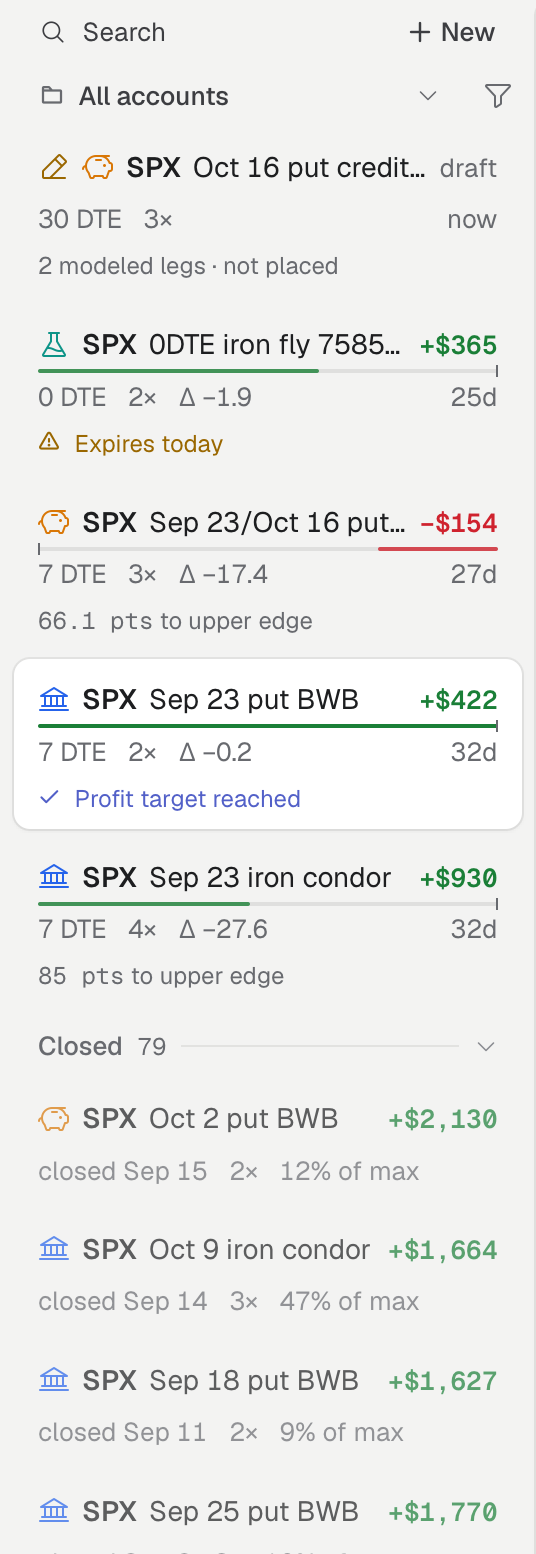
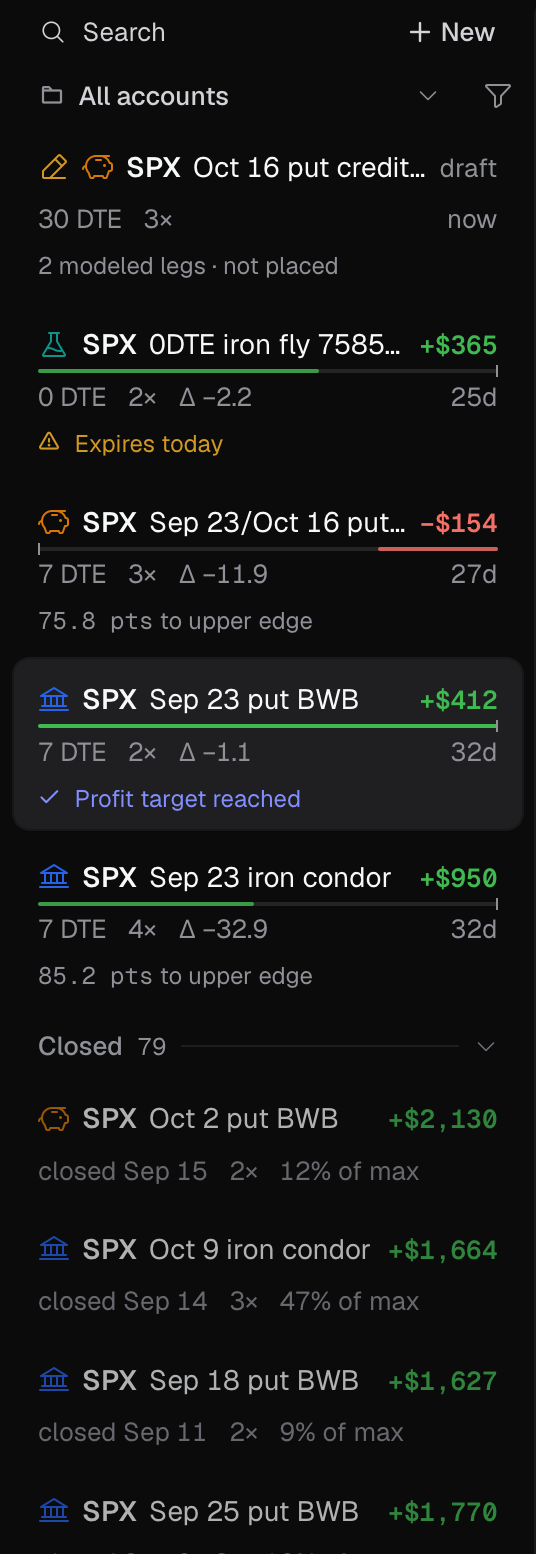
The Trades sidebar: one card per trade, drafts and open trades together, closed trades in their own section.
- 1 Account filter
- 2 Status filter
- 3 P&L
- 4 Progress toward target or stop
- 5 Status line
How traders use it
Section titled “How traders use it”- Scan the book by status lines. The line under each card names the one thing that matters: “Profit target reached”, “Loss limit reached”, “Expires today”, “Working order”, or how far the underlying is from your profit zone.
- Judge a trade by its bar. It fills toward your target when the trade is up and toward your stop when it is down; without a plan, toward the maximum profit or loss.
- Focus one account. Filter to Roth IRA and the footer figures follow.
- Review recent closes. Filter to Closed and scroll; 20 more load at the end.
- Give the page room. Hide the sidebar to work the graph and builder at full width.
In this topic
Section titled “In this topic”- Trade cards: what each part of a card and its status line mean.
- Find and filter trades: search, account and status filters, order, and hiding the sidebar.
- Footer figures: Open P&L, the session line, theta, Net liq and Excess.
- The trade page and its drawer: the header and the Chain, Chart, Record and Desk tabs.
- Closed trades: the review page.